
To securely make payments on the Public Financial Management System (PFMS) and approve Gram Panchayat Development Plans on the eGramSwaraj portal, government users must digitally sign transactions using a USB token. This guide explains how to properly configure your Windows computer with the necessary NIC DSC Signer software.
What is NIC DSC Signer
The NIC DSC Signer is a background utility software developed by the National Informatics Centre (NIC). It acts as a bridge between your physical Digital Signature Certificate (DSC) USB token and the web browser.
Without this utility running in the background, web portals like PFMS and eGramSwaraj cannot read your USB token securely. If you are handling GPDP Plans or executing payments, completing your NIC DSC registration and having this driver running is absolutely mandatory.
Requirements for DSC Signer Installation
1. Java JDK 8
The DSC Signer software is built on Java. A 32-bit or 64-bit Java Development Kit (JDK) must be installed on your Windows system.
2. DSC Token Driver
The specific hardware driver for your USB Crypto Token (e.g., ProxKey, TrustKey, ePass2003, Moser Baer).
3. NIC DSC Signer Software
The official NIC DSCSigner.exe file which sets up the local service on port 55101.
4. rootCA Certificate
A local security certificate (rootCA.crt) that allows your web browser to securely communicate with the local DSC software.
Download DSC Signer and Required Files
Official Unified Download Package
To make things simple, the eGramSwaraj portal provides a single ZIP file containing all the essential requirements for DSC Signer installation PFMS and eGramSwaraj integration.
The ZIP package includes:
- DSC Signer software (DSCSigner.exe)
- Java JDK offline installer
- rootCA.crt certificate file
- Official NIC installation documents
DSC Signer Installation Flow Diagram
Step-by-Step DSC Signer Installation Guide
Follow these instructions carefully to avoid common signature errors.
Install Java JDK
Before installing the signer, verify if Java is installed on your computer. If not, open the downloaded ZIP folder from step above, locate the Java JDK installer, and double-click to install it. Use default settings and click Next until finished.
How to Install DSC Token Driver
Most issues stem from a missing nic dsc driver. Your digital signature token is physical hardware—your computer needs its driver to talk to it.
- Insert your physical eGram USB token into the USB port.
- Open This PC (or My Computer).
- You will see a new CD Drive / USB Drive mapped (often named ProxKey, ePass2003, or TrustKey).

- Double-click the drive, locate the Setup or Installer file, and run it.
- Complete the setup wizard. You may need to restart your computer.
Install DSC Signer Software
Now that Java and your Token are ready, you can install the main software bridge.
- Extract the ZIP file you downloaded earlier.
- Locate and run DSCSigner.exe as an Administrator.
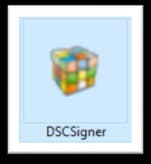
- Click Next on the Welcome Wizard.
- Choose the installation folder (default is recommended) and click Install.
- Click Finish. The DSC System Tray service will automatically start in the background.
Check DSC Signer Status
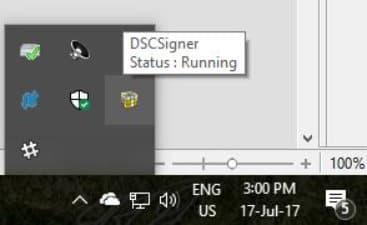
Verify the program is active. Look at the bottom right corner of your Windows screen (the System Tray, near the clock).
You should see a small blue web icon. If you hover over it, the status should distinctly show 'Running'. If you do not see it, search for "DSCSigner" in the Windows Start menu and manually launch it.
DSC Signer Settings
After successful installation, an icon for DSCSigner will be seen at the right side of the taskbar with status as 'Running' (if the token is plugged in).
To change the token driver configuration, right click on the DSCSigner icon and click on Settings.
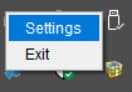
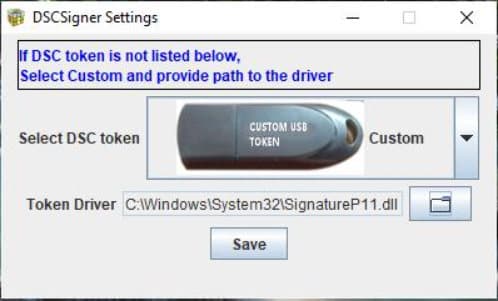
A window appears with the title DSCSigner Settings. Select the appropriate token driver and click on the Save button.
If the token available is not listed in the predefined USB token list, select the Custom option. Then click on the folder icon to manually select the matching driver file for the custom token. Select the appropriate file and click the Save button to save the driver. Disconnect and Reconnect the token to reinitialize the token with the new driver.
Common Drivers Reference List
Browser Configuration for DSC Signing
Modern browsers block scripts trying to read from your local computer unless you explicitly allow them. Depending on your browser, you must trust the DSCSigner client running locally.
Google Chrome Setup (Most Common)
Chrome strongly isolates localhost by default. You need to enable a developer flag.
- Open Chrome and paste chrome://flags/#allow-insecure-localhost in the address bar.
- Press Enter.
- Look for the highlighted setting: Allow invalid certificates for resources loaded from localhost.
- Change the dropdown from Disabled to Enabled.
- Click the Relaunch button at the bottom.
Mozilla Firefox Setup
- Open Firefox Settings > Privacy & Security.
- Scroll down to Certificates and click View Certificates.
- Go to the Authorities tab, click Import.
- Browse for the
rootCA.crtfile that was inside the ZIP package you downloaded. - Check "Trust this CA to identify websites" and click OK.
Common DSC Signer Errors and Fix
Error: DSC signer not detected
Ensure the DSCSigner icon is visible in the System Tray and running. If you just installed it, launch it manually from the Start Menu.
Error: Token not found
Either your token is not plugged in completely, or you did not install your token driver (e.g., ePass2003 installer). Unplug, re-plug, and verify the token light is glowing.
Error: Browser certificate error / Connection Refused
You skipped the browser configuration setup. In Chrome, ensure the chrome://flags/#allow-insecure-localhost flag is enabled and the browser has been fully restarted.
PFMS signing error or eGramSwaraj signing issue
If you successfully enter your token PIN but the portal still throws an error during the final submit, it may be a portal timeout issue. Clear your browser cache, log back into the portal, and attempt signing again.
Frequently Asked Questions
What is NIC DSC Signer?
NIC DSC Signer is a utility software required to digitally sign payment files and important documents on government portals like PFMS and eGramSwaraj using your USB digital signature token.
How to install DSC signer for PFMS?
First, download the official requirements ZIP file. Then install JDK 8, install your USB token driver, run the DSCSigner.exe installer, and lastly, configure your browser to allow local network signing.
Why is DSC signer not working in Chrome?
Chrome often blocks local connections for security. You must enable the flag by visiting chrome://flags/#allow-insecure-localhost and setting 'Allow invalid certificates for resources loaded from localhost' to Enabled.
How to install eGramSwaraj DSC signer?
The DSC Signer for eGramSwaraj is the same as the one used for PFMS. Download the ZIP file from the eGramSwaraj download section, run DSCSigner.exe, and follow the setup wizard.
Related Panchayat Tools & Guides
All software downloads, including DSC Signer, are provided directly via the official NIC eGramSwaraj portal. PanchayatSetu is an independent guide and is not responsible for official software components.